
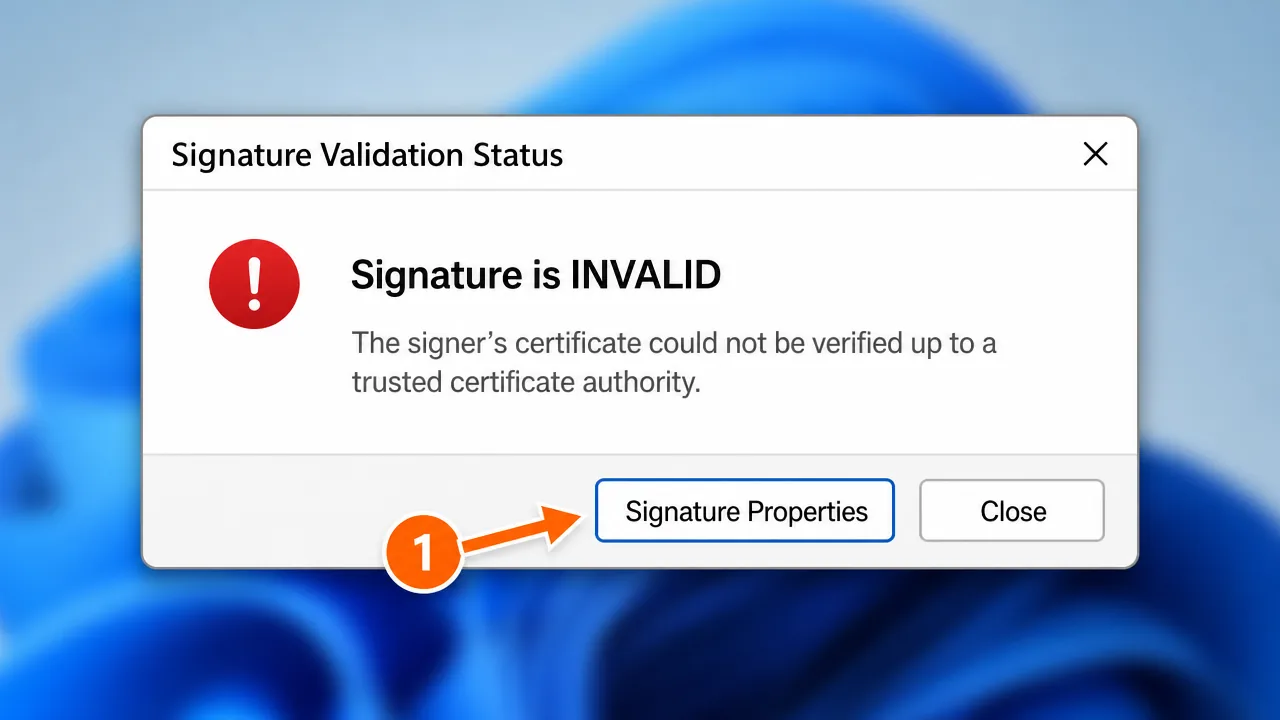
A digital signature certificate error in the US almost always means the software can't build a trusted path from your certificate to a root it recognizes. Confirm the certificate is valid and not expired, install the issuing CA's full chain, sync your system clock, and reload the trusted certificate list in your PDF app.
A procurement officer at a mid-size manufacturer in Ohio called me an hour before a federal bid was due. Every time she tried to sign the submission PDF, Acrobat threw back "The certificate could not be verified up to a trusted certificate authority." Her IT team had already reinstalled the software twice. The clock was ticking toward a 2 p.m. Eastern deadline, and nobody could say why a certificate that signed contracts last quarter suddenly refused to cooperate.
If you've run into a digital signature certificate error, you've probably noticed how little the message actually tells you. It names the symptom and hides the cause. The certificate is almost never the problem. What's usually broken is trust — the invisible path your software walks from your certificate up to a root authority it already believes in.
Why this error happens
Every digital signature relies on a chain. At the bottom is your signing certificate. Above it sits one or more intermediate authorities. At the top is a root the operating system or the PDF reader already trusts. Validation works by climbing that ladder. If any rung is missing, expired, or sitting in the wrong place, the whole climb fails and you get "not trusted."
Honestly, the wording is the worst part. "Could not be verified up to a trusted certificate authority" sounds like your certificate is fake. In reality it usually means one intermediate certificate never got installed, or the machine reading the document has an outdated trust list. Same certificate, two different verdicts, depending entirely on what each computer already knows.
There's also a quieter culprit: time. Certificates are valid only within a date window. If your system clock is wrong — a dead CMOS battery, a bad time zone, a manual date change — the software can conclude your certificate isn't valid yet or already expired, even when it's perfectly current.
Basic checks before you go deeper
Start with the cheap checks. Most errors die here.
-
Open the certificate and read its status. Double-click the certificate and look at the "General" tab. If it says the certificate is expired or "not yet valid," you've found it immediately. Renewals lapse more often than people expect.
-
Confirm your system clock and time zone. This sounds trivial, but a wrong date is one of the most common hidden causes in the US, especially on laptops that travel across time zones. Right-click the clock, verify the date, time, and zone all match reality.
-
Check whether the issuing CA is installed. Open
certmgr.msc, expand "Intermediate Certification Authorities," and confirm your certificate's issuer is listed. A missing intermediate is the single most frequent reason a signature won't validate. -
Test in more than one reader. If the signature is valid in one PDF app and invalid in another, the problem is the app's trust list, not your certificate.
Step-by-step fix
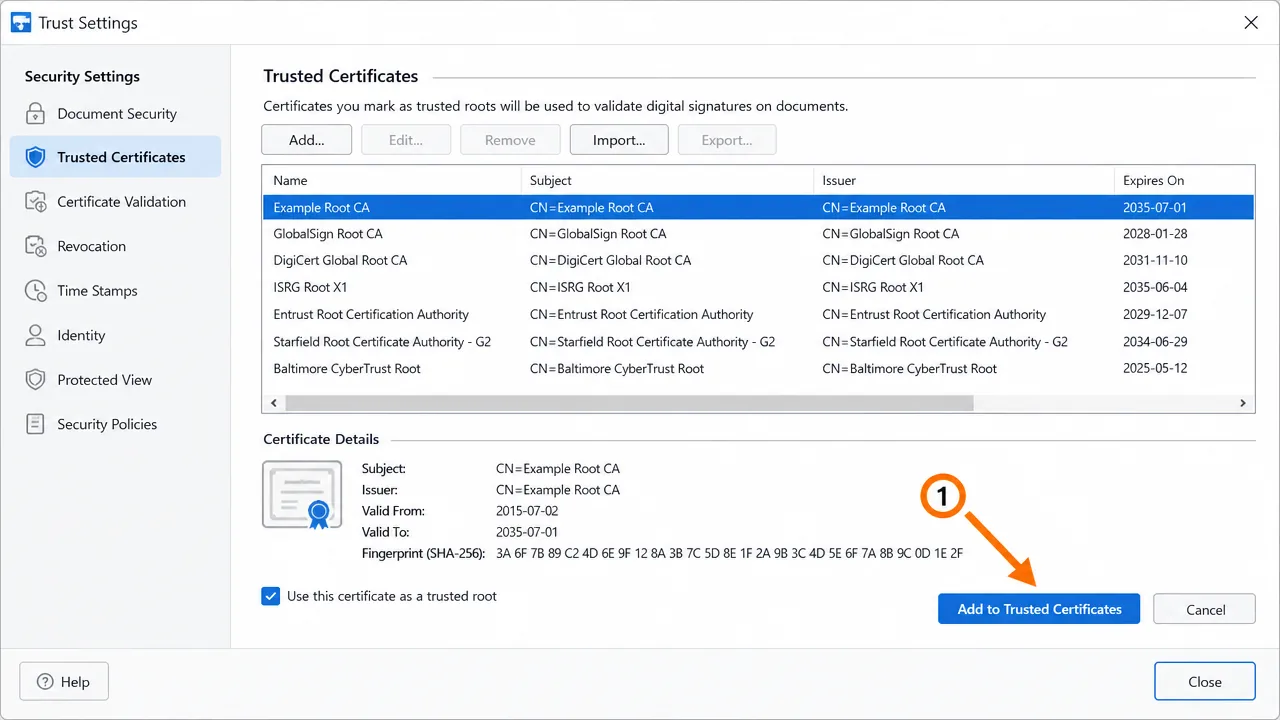
Once you know roughly where the break is, work through this deliberately.
-
Identify the exact issuing authority. Read the "Issued by" field. Download the chain for that specific CA — not a similarly named one. Mixing chains is a classic dead end.
-
Install the root into Trusted Root Certification Authorities. Open the root file, choose Install, select Local Machine, and manually pick the Trusted Root store. Don't let Windows auto-select; it guesses wrong often.
-
Install every intermediate certificate. Some authorities use two. Place them in "Intermediate Certification Authorities." One missing link keeps the entire chain broken.
-
Refresh trusted identities in your PDF app. In Acrobat, go to Preferences, Signatures, and update the trusted certificate list (AATL). Many US signers never enable automatic updates, so their trust list is years stale.
-
Clear the chain cache. Run
certutil -urlcache * deletein an elevated Command Prompt. Windows caches path-building results, and a stale cache keeps failing after you've already fixed the store. -
Re-sign, then verify in the target reader. Reopen the certificate's Certification Path. Every level should read "OK." If one still shows a warning, that's precisely the certificate to reinstall — leave the others alone.
-
Embed the full chain for recipients. When you sign, include the complete certificate chain so the person on the other end can validate without hunting for intermediates.
Here's the part most people miss: fixing your own machine doesn't fix everyone else's. If the document travels, the chain has to travel with it.
A case where the obvious fix didn't work
A law firm in Texas sent me a signed settlement PDF that validated cleanly on the paralegal's desktop but showed invalid on the partner's laptop. We reinstalled the chain on the laptop. No change. We updated the trust list. No change. The certificate looked identical on both machines.
The actual cause turned out to be the laptop's clock. It had been sitting in a drawer, the battery had drained, and on wake it defaulted to a date two years in the past — before the signing certificate was even issued. The software correctly decided the certificate "wasn't valid yet." Ten seconds of resetting the date fixed what an hour of reinstalling couldn't. Time is the cause nobody suspects.
An edge case people miss
Trust lists differ by application, and that trips up US teams constantly. A certificate can be trusted by Windows and still show invalid in a browser-based signing portal, because the browser or the portal maintains its own separate trust store that ignores the Windows one entirely. Chrome, Firefox, and Java each keep their own lists. If your signature validates on the desktop but fails inside a web workflow, stop reinstalling into Windows and look at where that specific application actually reads its trusted roots.
What the error message is actually telling you
It helps to translate the wording, because Acrobat and Windows both phrase this badly. "Could not be verified up to a trusted certificate authority" is not an accusation that your certificate is fake — it's a confession that the software gave up building a path. Somewhere between your signing certificate and a root the machine trusts, a link is missing, misplaced, or expired, and rather than tell you which, the software throws a single blanket message.
The same goes for "the signer's identity is unknown." That's a trust statement, not a validity statement. Your certificate can be completely genuine and current, issued by a real authority, and still land as "unknown" simply because the reader's trust list has never been updated. Once you separate trust from validity in your head, the error stops being mysterious and starts pointing you somewhere specific.
Why this keeps happening to US signers
Three patterns cause the bulk of these errors in American workplaces. First, automatic trust-list updates are switched off on locked-down corporate machines, so signatures from perfectly legitimate authorities read as untrusted for years. Second, certificates get renewed but the new issuing chain never gets distributed to everyone who has to validate the documents. Third — and this one is genuinely underrated — laptops that move between offices, home, and travel accumulate clock drift and time-zone confusion that quietly pushes certificates outside their validity window.
None of these are exotic. They're the ordinary consequences of real-world IT, which is exactly why the same handful of fixes resolves the overwhelming majority of cases. Before you assume anything is deeply wrong, work the ordinary causes: trust list, chain distribution, and the clock. The dramatic-sounding errors almost always have mundane roots, and chasing an imagined forgery when the real issue is a stale trust list is how people lose an afternoon.
If none of this works
If you've verified the certificate, synced the clock, rebuilt the chain, and refreshed the trust list and the signature still won't validate, the problem is usually subtler — a policy setting, a revoked certificate, a broken OCSP responder, or a mismatch between the signing format and what the recipient's software accepts. That's the kind of layered issue that's hard to diagnose remotely without seeing the certificate and the environment together, and it's the sort of case handled professionally. No guarantees, no magic — just methodical elimination until the real break shows itself.
Expected result when it's fixed
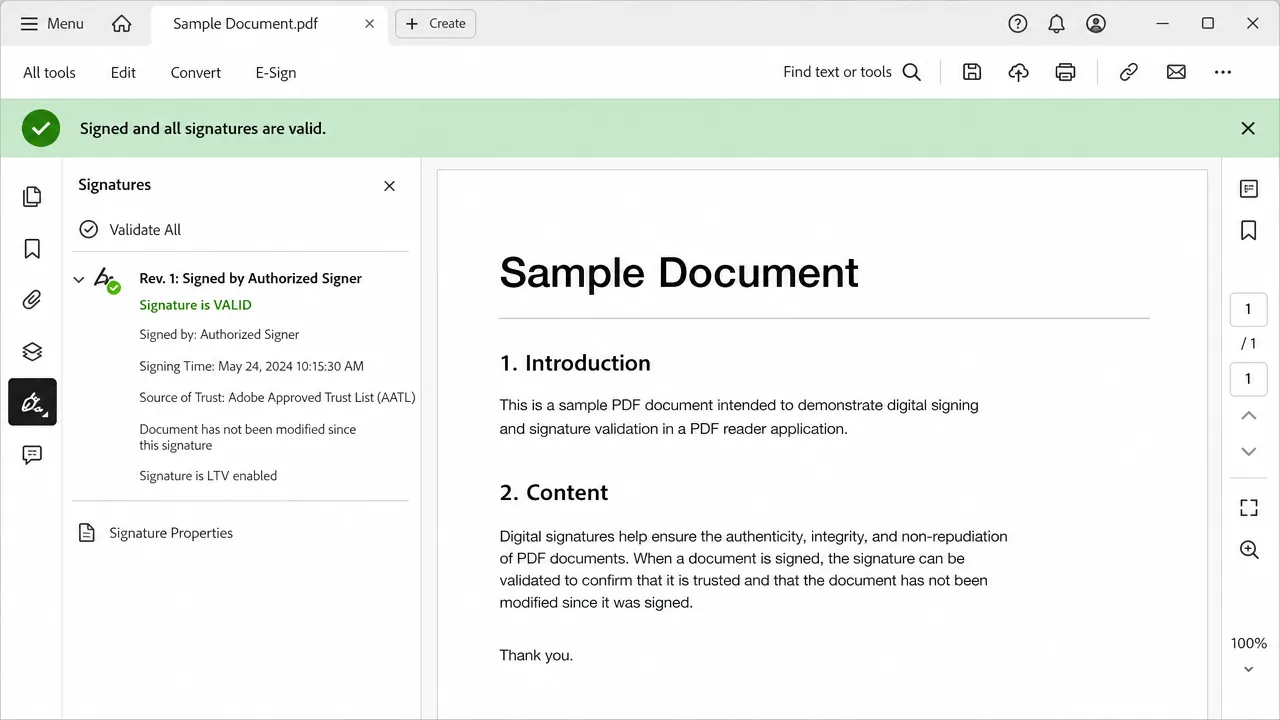
When the chain is complete, the clock is right, and the trust list is current, the same document that was flagged will validate cleanly. You should see a green confirmation that the signature is valid and the document has not changed since signing.
Frequently asked questions
Why does my digital signature show as invalid even though my certificate is valid?
Because the software can't trace your certificate back to a root it trusts. The certificate itself is fine, but the intermediate or root link is missing from the machine reading the document, so validation fails.
Does the system clock really affect signature validation?
Yes. If your PC's date and time are wrong, the software may decide the certificate isn't valid yet or has already expired. A few minutes of drift is harmless, but a wrong date or time zone can break validation entirely.
Why does the signature validate for me but not for the person I sent it to?
Your machine already trusts the issuing CA; theirs may not. Embed the full certificate chain at signing time, and ask the recipient to update their trusted certificate list so their reader can resolve the path.
Is a self-signed certificate causing my error?
Often, yes. Self-signed or internally issued certificates aren't trusted by default outside your organization. For anything shared externally, use a certificate from a publicly trusted or AATL-listed authority.
Need hands-on help?
Get expert, independent help with PKI, certificates and digital signatures over a screen-shared remote session.
Comments
Loading comments…