
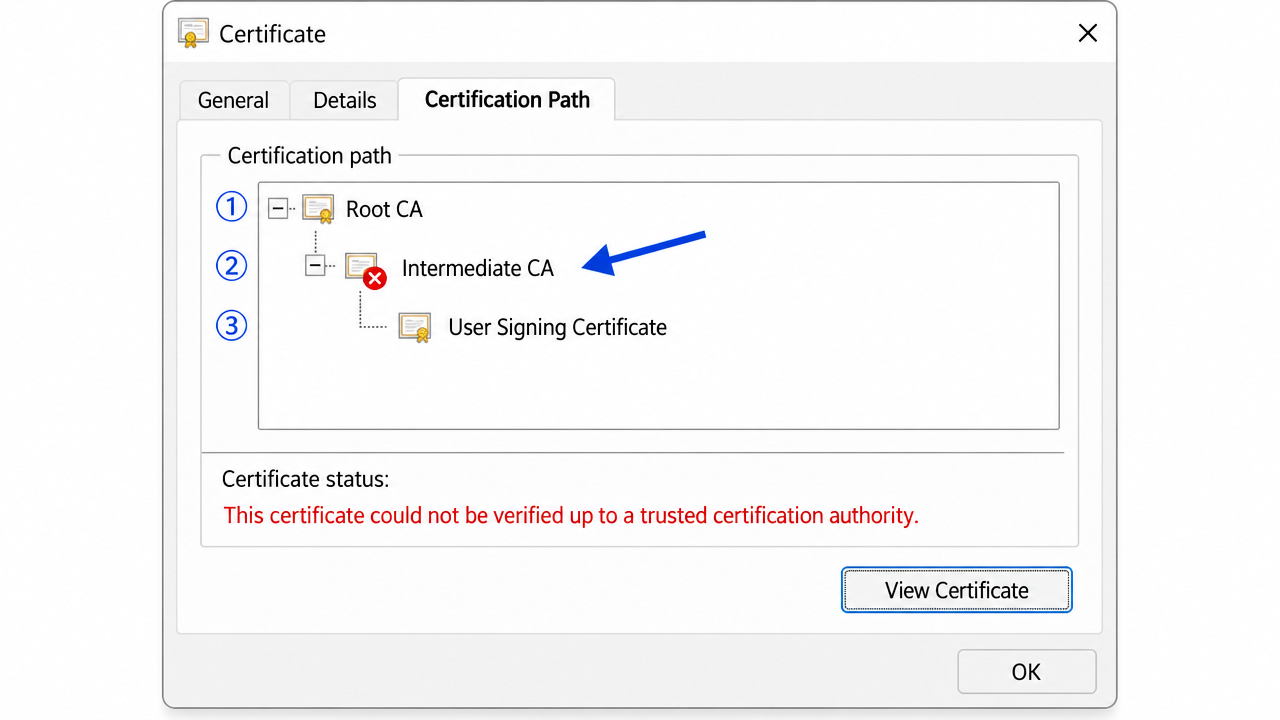
A PKI trust chain error is almost always a missing intermediate certificate, a root in the wrong store, or a recipient with a stale trust list. Read the certificate's Certification Path tab to find the broken link, then reinstall exactly that certificate into the correct store.
A bank's IT lead pinged me late on a Tuesday. Their treasury team signed board resolutions with DSCs every month, and this cycle every single signature came back "not trusted" in the auditor's PDF viewer — but validated perfectly on the machines that created them. Same certificate, two different verdicts. That contradiction is the whole story of PKI trust chains in one sentence.
Trust chain problems are maddening precisely because the certificate itself is usually fine. What breaks is the path — the invisible line your software draws from a signing certificate up to a root it already believes in. When that line has a gap, everything downstream fails, and the error message rarely tells you which link snapped.
What a trust chain actually is
Think of it as a three-link chain. At the top sits a root CA — a self-signed anchor your operating system ships with or that you install manually. In the middle sits one or more intermediate CAs. At the bottom sits your signing certificate. Validation walks upward: your cert points to its issuer, that issuer points to its issuer, until it reaches a trusted root.
If any link is missing, expired, or untrusted, the chain doesn't resolve and you get some flavour of "could not be verified up to a trusted certification authority." The wording is almost hostile in how unhelpful it is — it names the symptom (no trusted root) but never the actual break (usually a missing intermediate). I've lost count of how many hours people waste reinstalling the wrong piece because the message points them nowhere.
Basic checks before you go deeper
Start by looking at the chain itself instead of guessing.
-
Open the Certification Path tab. Double-click your certificate, go to "Certification Path," and read it top to bottom. A healthy chain shows every level with no warning icon and the status "This certificate is OK." A red mark on any node is your break point — note exactly which level.
-
Check whether the intermediate is even installed. Open
certmgr.msc, expand "Intermediate Certification Authorities → Certificates," and confirm your CA's intermediate is present. This is the single most common gap, and it's invisible unless you look for it. -
Confirm the root is in the right store. The root must live in "Trusted Root Certification Authorities," not Intermediate, not Personal. A root sitting in the wrong store is the same as no root at all.
-
Verify validity dates on every link. An expired intermediate breaks the chain even when your signing certificate is perfectly current. People check their own cert and forget the links above it.
Step-by-step troubleshooting
Once you know which link is broken, rebuild it deliberately.
-
Identify your exact issuing CA. Read the "Issued by" field on your certificate. Download the chain for that specific CA — mixing chains from different CAs is a classic dead end that changes nothing.
-
Install the root into Trusted Root. Open the root file, Install Certificate, choose Local Machine, and manually select the Trusted Root store. Never let Windows auto-place it; auto-select guesses wrong more often than not.
-
Install every intermediate. Some CAs use two intermediates. Install all of them into "Intermediate Certification Authorities." A single missing link keeps the whole chain broken.
-
Flush the chain cache. Run
certutil -urlcache * deletein an elevated prompt. Windows caches chain-building results, and a stale cache will keep failing even after you fix the store. -
Rebuild and re-read the path. Reopen the certificate's Certification Path tab. Every level should now be clean. If one still shows a warning, that's precisely the certificate to reinstall — don't touch the others.
-
Test in the target application, not just certmgr. A chain can look perfect in Windows and still fail in a PDF viewer that maintains its own trust list. Validate where the signature is actually consumed.
-
For Adobe, check its independent trust store. Adobe products don't fully rely on Windows — they keep their own Trusted Identities and, for Indian DSCs, need the AATL or the CCA India root added manually. This trips up almost everyone the first time.
-
Document the working chain. Once it validates, export the exact root and intermediates so you can redeploy them across machines. This saves you from rediscovering the fix on every new workstation.
The edge case that catches people
Here's where it gets tricky. A chain that validates for the signer can still fail for the recipient, and that's not a contradiction — it's by design. Signing embeds the certificate but not always the full chain, so verification depends on what the recipient's machine already trusts.
Consider a case where a firm's DSCs validated flawlessly in-house but were rejected by their external auditor. We confirmed the chain was complete on the signing PCs. The break was on the auditor's side: their PDF viewer had an older Adobe AATL list that predated the CA's newer intermediate. The certificate was legitimate; the recipient simply hadn't received the updated trust anchor. The fix was to embed the full chain at signing time and have the auditor refresh their trusted list — not to reissue a single DSC.
That's the part standard guides skip. On locked-down networks the problem compounts, because the viewer can't auto-fetch missing intermediates from the CA's server (the "Authority Information Access" URL gets blocked), so it falls back to whatever is installed locally. Same certificate, different environment, different result.
Environment quirks that change the outcome
Not every trust break behaves the same on every machine, and that inconsistency is what makes chains so frustrating to debug across a team. A domain-joined Windows PC often receives CA roots pushed through group policy, so it can validate a chain that a standalone home laptop rejects outright — same certificate, different trust anchors delivered by the network.
Java-based signing tools add their own wrinkle. They don't read the Windows store at all; they use a separate cacerts keystore, so a chain that's perfect in Windows can still fail inside a Java portal until you import the root there too. Government and banking portals that rely on a Java applet or a signed jar are the usual place this surfaces. When a chain validates in one application and fails in another on the very same PC, the difference is almost always which trust store that application actually reads — check that before you touch the certificate again.
If none of this works
Most trust-chain issues come down to a missing intermediate, a root in the wrong store, or a recipient with a stale trust list — and the Certification Path tab will almost always point you at the broken link if you read it carefully. Work top to bottom and resist the urge to reinstall everything at once.
Some cases are genuinely stubborn: cross-signed roots during a CA migration, conflicting middleware that ships its own outdated chain, or group policy that resets the trust store on reboot. If you've rebuilt the chain and it still won't resolve, that's the kind of thing we untangle professionally over a remote session — mapping the exact path rather than guessing. No promises of magic here; some environments just need someone to trace every link by hand. But start with the path tab. The answer is usually sitting right there in red.
Frequently asked questions
What causes a PKI trust chain error?
Most often a missing intermediate certificate, a root installed in the wrong store, or an expired link above your signing certificate. The chain can't resolve to a trusted root, so validation fails even though your certificate is fine.
Why does my certificate validate on my PC but fail for the recipient?
Signing embeds your certificate but not always the full chain, so verification depends on what the recipient's machine trusts. If they have an older trust list or a missing intermediate, they'll see it as untrusted. Embed the full chain at signing time and have them refresh their trusted certificates.
Where should the root and intermediate certificates go?
The root belongs in Trusted Root Certification Authorities and the intermediate in Intermediate Certification Authorities. Placing a root in the wrong store is the same as having no root at all.
Why does the chain work in Windows but fail in a Java portal?
Java uses its own cacerts keystore and ignores the Windows store. You must import the CA root into Java separately for Java-based signing applets to trust the chain.
Need hands-on help?
Get expert, independent help with PKI, certificates and digital signatures over a screen-shared remote session.
Comments
Loading comments…