
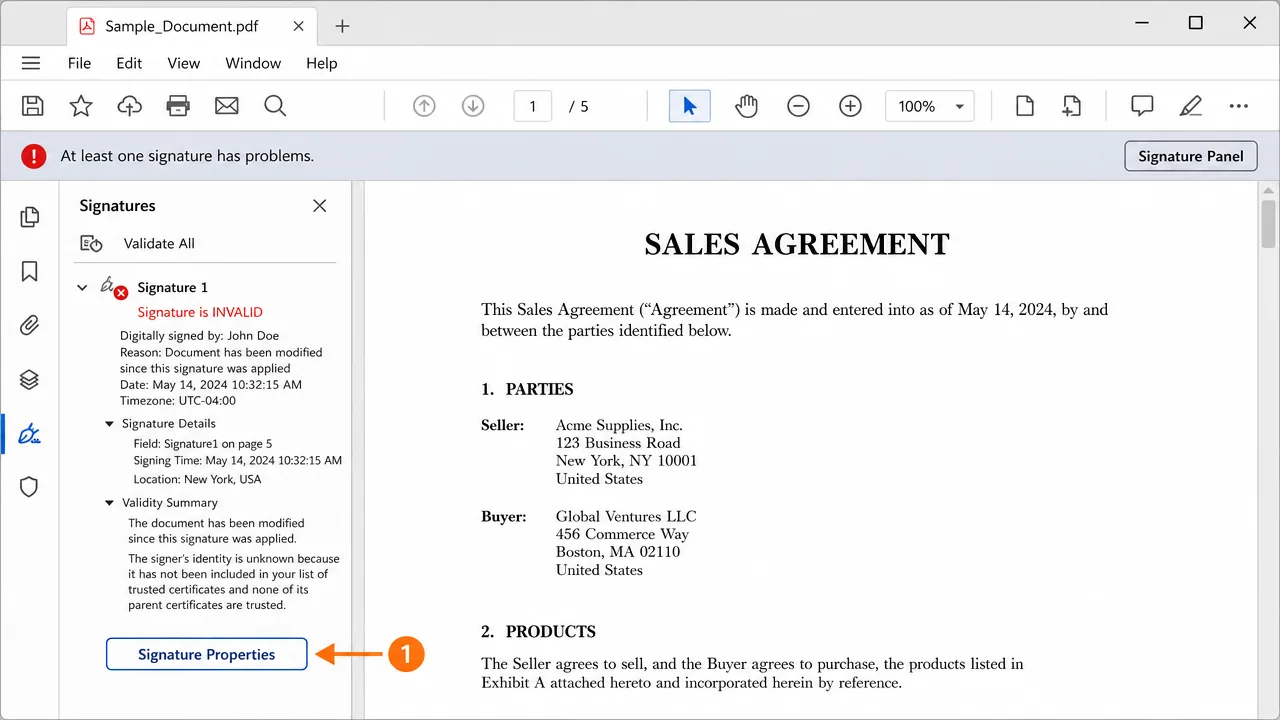
'Adobe signature is invalid' in Australia usually means one of three things: the signer's certificate isn't trusted by your Acrobat, the document was changed after signing, or the trusted certificate list is out of date. Update the AATL trust list, confirm the document wasn't altered, and add the signer's certificate to trusted identities.
An accounts manager at a firm in Melbourne emailed me a signed tax document that her colleague swore was fine. On her screen, Acrobat showed a bold red banner: "At least one signature has problems." On the colleague's screen two desks away, the same file showed a clean green tick. Same PDF, same version of Acrobat, opposite verdicts. She wanted to know which computer was lying.
Neither was, really. An invalid signature in Adobe almost never means the document is forged. It means your copy of Acrobat can't confirm one of two things — either that it trusts the signer, or that the document hasn't changed since it was signed. Those are very different problems wearing the same red banner.
Why Acrobat marks a signature invalid
A digital signature makes two promises. First, it identifies who signed, using a certificate that should trace back to an authority Acrobat trusts. Second, it seals the document's exact contents at the moment of signing. If either promise can't be verified, Acrobat calls the signature invalid.
Here's where it gets tricky. The message "at least one signature has problems" lumps together two completely separate faults. "Signer's identity is unknown" is a trust problem — Acrobat doesn't recognise the certificate authority. "The document has been modified" is an integrity problem — something changed after signing. The fix depends entirely on which one you're seeing, so the first job is always to open the details and read which it is.
Honestly, Adobe could word this far better. People panic at "invalid" when nine times out of ten the real story is simply a trust list that hasn't updated.
Basic checks before you go deeper
Read the signature before you touch anything.
-
Open the Signature Panel. Click the banner or the fountain-pen icon and expand the signature. Note the exact wording — "identity unknown" versus "document modified" sends you down two different paths.
-
Check whether trust list updates are enabled. In many Australian office builds, automatic AATL updates are switched off, so the trust list is frozen at install time. That alone causes valid signatures to appear untrusted.
-
Confirm the document wasn't changed. If you or anyone in the chain added a comment, filled a field, or re-saved the file in another program, that breaks the signature. Ask whether the file was touched after signing.
-
Compare with another reader. If a different, updated copy of Acrobat validates it, the problem is your trust list, not the signature.
Step-by-step fix
-
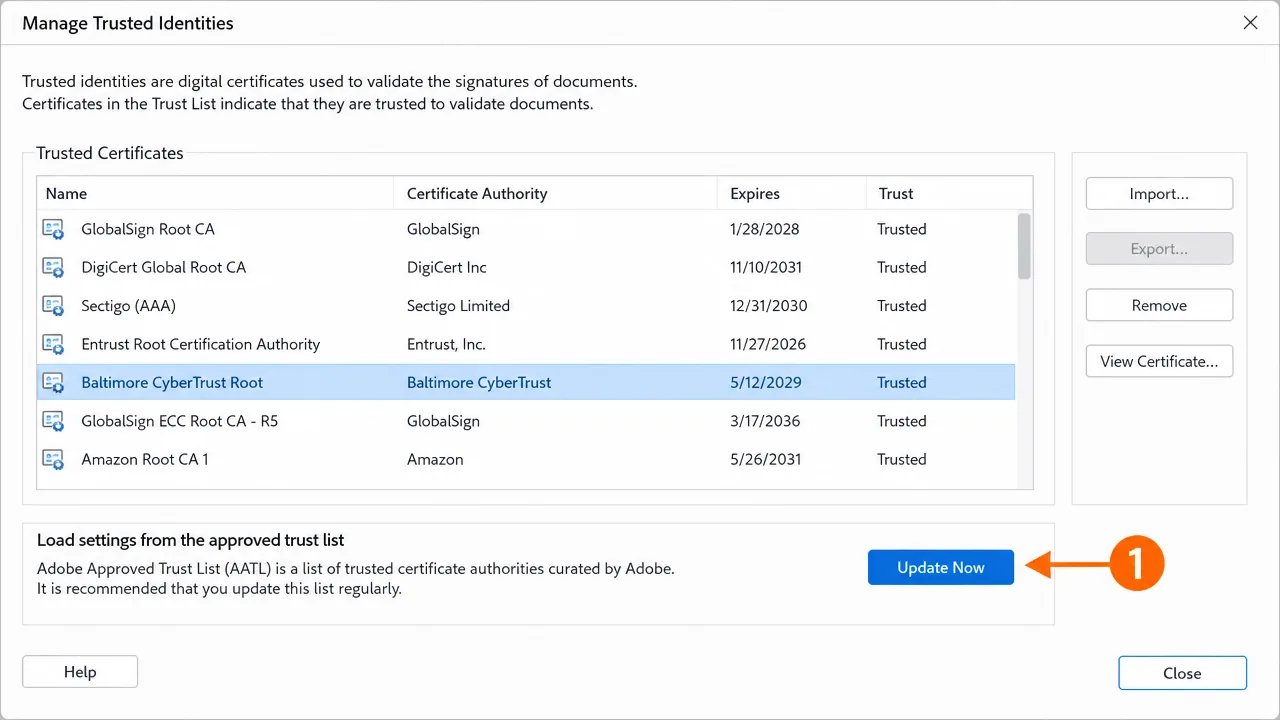
Update trusted identities. In Acrobat, go to Preferences, then Signatures, and update the Adobe Approved Trust List. Enable automatic updates so it stays current. This resolves the majority of "identity unknown" cases outright.
-
Add the signer's certificate to trusted identities. If the signer used a certificate outside the AATL, open the signature properties, view the certificate, and add it to your trusted identities so Acrobat will accept it.
-
Verify the certificate chain. In the signature's certificate details, check the certification path. A missing intermediate here produces the same "untrusted" result as a stale trust list.
-
Re-validate all signatures. After updating trust, use "Validate All" in the Signature Panel. Where people get stuck: expecting the banner to refresh on its own — it won't until you revalidate.
-
If it says 'modified', get the original. A modified-document error can't be repaired by trust settings. Request a fresh, unaltered copy from the signer and open it without saving through another app first.
-
Check the timestamp. If the signature relied on a trusted timestamp and Acrobat can't reach the timestamp authority, it may flag the signature. Confirm the timestamp source is reachable.
-
Restart Acrobat after updating trust. Trust changes sometimes need a fresh session to take effect. Where people get stuck: assuming the update failed when it just needed a restart.
A case where the obvious fix didn't work
A consultancy in Perth couldn't validate a batch of signed agreements no matter what they tried. Trust list updated, signer's certificate added, chain complete. Acrobat still reported the documents as modified.
The culprit turned out to be their own workflow. A document management system was automatically re-saving every incoming PDF to add an internal reference stamp. That re-save, invisible to the staff, altered the file after signing and broke every signature on the way in. The signatures were perfectly valid when they arrived — the storage system was quietly invalidating them. Excluding signed PDFs from the auto-stamp fixed the entire batch. The obvious fixes failed because the file was being changed after everyone stopped looking.
An edge case people miss
Timestamps trip people up in cross-border documents. An Australian signer may use a certificate that's fine, but if the signature includes a timestamp from an authority Acrobat doesn't trust, or the timestamp server is unreachable behind a corporate firewall, Acrobat can flag the signature even though the identity and the document are both sound. If the details mention the timestamp rather than the certificate, stop working on trusted identities and look at timestamp reachability instead.
Reading the two faults hidden in one banner
The most important habit with Acrobat is refusing to react to the red banner alone. "At least one signature has problems" is a headline, not a diagnosis, and underneath it sit two entirely different faults that need opposite fixes. Open the signature and read the specific line. "Signer's identity is unknown" means trust — your Acrobat doesn't recognise the authority, and the fix is your trust list and trusted identities. "The document has been modified since it was signed" means integrity — something changed the file after signing, and no trust setting on earth will repair that; you need a clean original.
People conflate these constantly, and it's understandable, because Adobe surfaces both under the same alarming wording. But treating a modification problem as a trust problem is a guaranteed dead end. You'll update trust lists all day and the banner won't budge, because the bytes genuinely changed. Read first, act second.
Why Australian workplaces see this so often
A lot of these errors in Australia come down to two environmental habits. The first is disabled trust-list updates on standardised corporate builds — the Adobe Approved Trust List gets frozen at deployment and never refreshes, so signatures from legitimate authorities slowly drift into "untrusted" as new authorities are added upstream that the frozen list never learns about. The second is document management and email systems that silently re-save or re-stamp PDFs in transit, quietly invalidating signatures that were perfectly sound when they left the sender.
There's also the cross-border angle. Australian firms routinely exchange signed documents with overseas parties whose certificates or timestamp authorities aren't in the default trust list, which produces "identity unknown" on genuine, valid signatures. The pattern to remember: if the fault is trust, fix your trust list and identities; if it's modification, get an untouched copy; and if the details mention a timestamp, look at timestamp reachability rather than the certificate. Matching the fix to the specific fault is the whole game.
If none of this works
If the trust list is current, the signer's certificate is trusted, the document is genuinely unaltered, and Acrobat still calls the signature invalid, you're likely dealing with something subtler — a revocation check failing, a timestamp authority that can't be validated, or a certificate policy Acrobat won't accept. Those need a closer look at the certificate and the environment together, and it's the kind of case handled professionally. No guarantees and no fake reassurance — just methodical work until the red banner finally makes sense.
Expected result when it's fixed
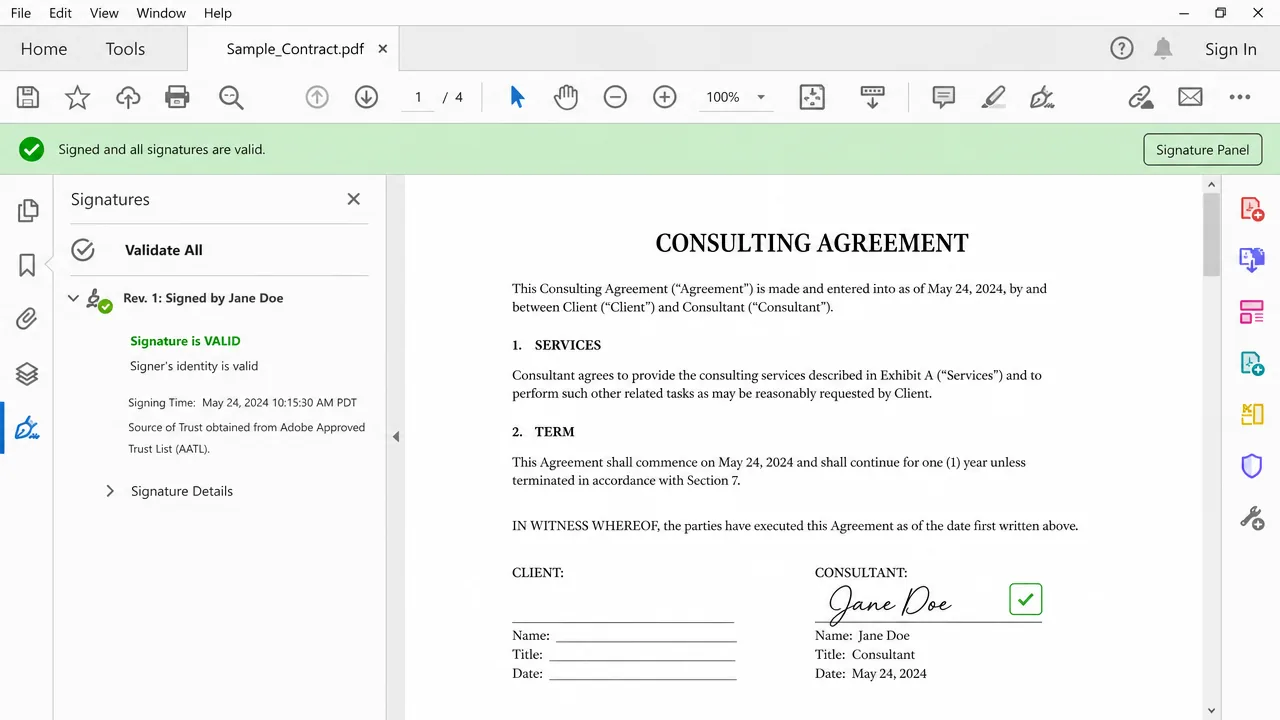
After the trust list is refreshed and the document is genuinely unaltered, Acrobat re-validates the signature without complaint. The red banner is replaced by a green confirmation that all signatures are valid.
Frequently asked questions
Does 'signature is invalid' mean the document is fake?
Not usually. It most often means your Acrobat doesn't trust the signer's certificate, or the document was changed after it was signed. A genuinely forged signature is rare compared to a trust or modification issue.
What is the AATL and why does it matter?
The Adobe Approved Trust List is the set of certificate authorities Acrobat trusts automatically. If it's outdated or updates are disabled, signatures from valid authorities can show as invalid until you refresh it.
Why does Acrobat say the document has been modified?
Any change after signing — even adding a comment, filling a form field, or re-saving in another app — can invalidate the signature. The signature guarantees the exact bytes at signing time, so any edit breaks it.
The signature is valid on the sender's computer but invalid on mine. Why?
The sender's Acrobat trusts the signing certificate and yours doesn't. Update your trust list and, if needed, add the signer's certificate to your trusted identities so your copy can validate it.
Need hands-on help?
Get expert, independent help with PKI, certificates and digital signatures over a screen-shared remote session.
Comments
Loading comments…