
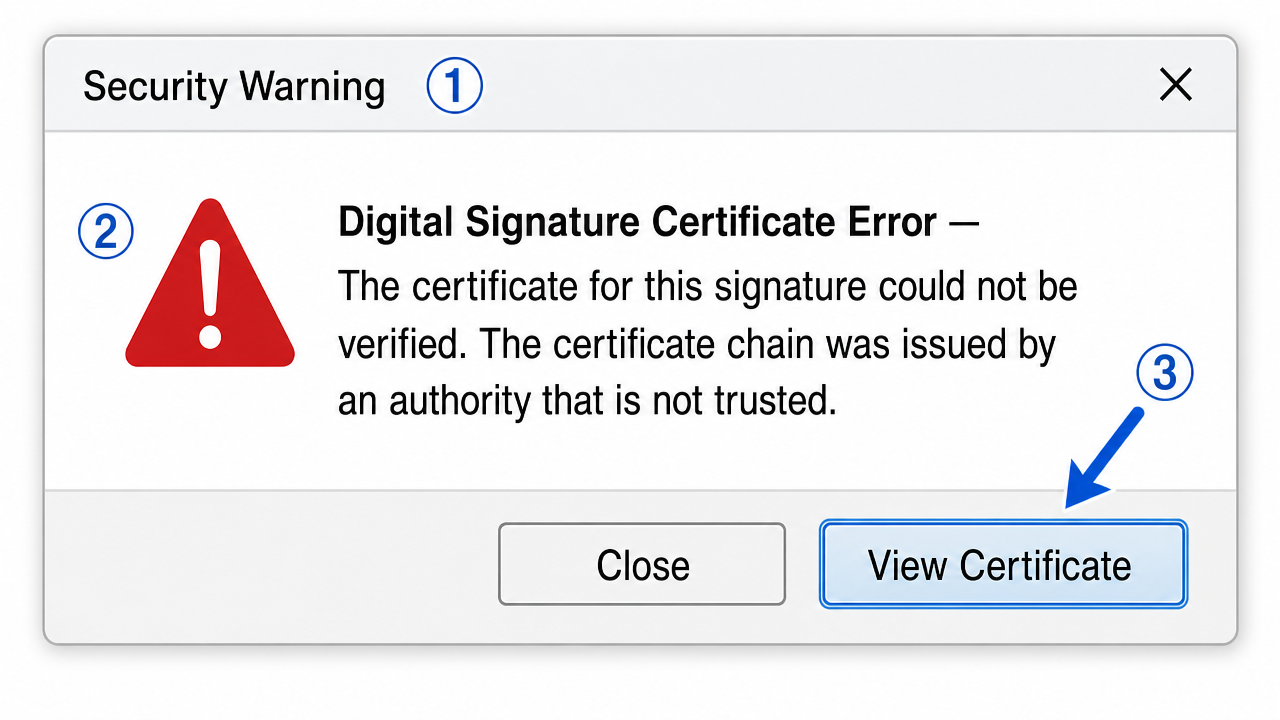
A digital signature certificate error is almost never a bad certificate — it is a broken trust chain. Fix it by correcting the system clock, reinstalling the current root and intermediate CA certificates in the right stores, clearing the certificate cache, and confirming the firewall is not blocking CRL/OCSP checks.
A Delhi-based chartered accountant called me at 9:40 in the morning, three PDFs deep into a GST filing, stuck on a red banner that read "the certificate chain was issued by an authority that is not trusted." Her DSC had worked fine the previous week. Nothing had changed on her side — except a routine Windows update that ran overnight. That single detail turned out to matter more than anything else she tried.
If you have ever seen a digital signature certificate error pop up right when a deadline is closing in, you already know the specific flavour of panic it brings. The signature looks applied, the token light is on, and yet the software insists the certificate can't be verified. Here's the part most people miss: this message is almost never about your certificate being "bad." It's about trust — whether the machine can trace your certificate back to a root it already believes in.
Why this error happens
A digital signature certificate doesn't stand alone. It sits at the bottom of a chain: your certificate is signed by an intermediate certificate authority (CA), and that intermediate is signed by a root CA. Your computer only accepts the signature if it can walk that whole chain up to a root it trusts in its certificate store.
When any link in that chain is missing, expired, or not installed, you get the generic "not trusted" error. Honestly, the wording the vendors use here is misleading — it sounds like your DSC is invalid when the real problem is usually a missing intermediate certificate or a stale trust root on the local machine.
In India specifically, this shows up a lot after CA re-issuance. The licensed CAs under CCA India periodically roll new intermediate certificates, and if your system still has the old chain cached, validation quietly breaks. Add a Windows update that refreshes the root store, and a certificate that worked on Friday throws an error on Monday.
There's a second, quieter cause worth naming: mismatched certificate purposes. A DSC issued strictly for signing can throw errors if an application tries to use it for encryption or authentication, and some portals request a specific key usage. The certificate is genuine, the chain is intact, and it still refuses — because the intended use doesn't match what the software asked for. It's rare, but when it happens people burn hours reinstalling a chain that was never the problem.
Basic checks before you go deeper
Before touching anything advanced, rule out the boring causes. Nine times out of ten it's one of these.
-
Check your system date and time. A clock that's even a day off can push a valid certificate outside its "not before / not after" window. Right-click the clock, confirm the date, time zone, and that "Set time automatically" is on. This is the single most common overlooked cause, and people skip it because it feels too simple to be real.
-
Confirm the token is actually detected. Open your token middleware (SafeNet Authentication Client, ePass, or your vendor's tool) and make sure the certificate is listed. If it isn't there, the problem is driver-level, not trust-level — stop and fix the token first.
-
Verify the certificate hasn't expired. Double-click the certificate in the middleware and read the validity dates. A DSC is typically valid for one to three years; renewals lapse more often than people admit.
-
Try a different application. If the signature validates in Adobe Reader but fails in a government portal, the issue is browser or portal side, not your certificate. This quick test saves an hour of chasing the wrong thing.
Step-by-step fix
Once the basics are clean, work through the trust chain itself. Take these in order — skipping ahead is where people get stuck.
One note before you start: do this while logged in with administrator rights. Installing into the Local Machine trust stores needs elevation, and half-installed chains — root in the right place, intermediate silently blocked by a limited user account — produce the exact same misleading error you started with.
-
Download the current CA chain. Go to your issuing CA's repository (eMudhra, Capricorn, (n)Code, Vsign, etc.) and grab the latest root and intermediate certificates. Tip: match the exact CA that issued your DSC — installing the wrong CA's chain does nothing.
-
Install the root into "Trusted Root Certification Authorities." Open the downloaded root, click Install Certificate, choose Local Machine, and manually place it in the Trusted Root store. People often let Windows "auto-select" the store, which drops it in the wrong place.
-
Install the intermediate into "Intermediate Certification Authorities." Repeat for the intermediate certificate. Both stores need the right pieces or the chain still shows a gap.
-
Clear the SSL/certificate cache. In Windows, run
certutil -urlcache * deletefrom an elevated command prompt. This forces a fresh chain build instead of reusing a broken cached path. -
Re-plug the token and reopen the app. Physically remove and reinsert the USB token, then relaunch the signing software fully — don't just refresh the page. Middleware caches the certificate context per session.
-
Rebuild the chain and test. Open the certificate, go to the Certification Path tab, and confirm every level shows "This certificate is OK." If a level still shows a warning, that's the exact link to reinstall.
-
Update root certificates via Windows. Run Windows Update, or on offline machines import the latest root update manually. A refreshed root store fixes cases where the CA rolled a new root your system never received.
-
Set the timestamp/validation preference. In Adobe, go to Preferences → Signatures → Verification and enable "Use the current time" plus "Require certificate revocation checking" only if your network allows it. Here's where it gets tricky on locked-down office networks — see the edge case below.
A tricky edge case people miss
The obvious fixes assume your machine can reach the internet to fetch revocation data. Many can't, and nobody tells you.
Consider a case from a mid-sized manufacturing firm. Their accounts team had a perfectly valid DSC, the full chain installed correctly, the clock accurate to the second — and it still failed on one workstation while working on every other. We reinstalled the chain twice. No change. The actual cause was a corporate firewall silently blocking outbound access to the CA's CRL and OCSP endpoints. The signing software tried to check whether the certificate was revoked, couldn't reach the server, timed out, and reported the whole thing as "not trusted."
The fix wasn't the certificate at all — it was whitelisting the CA's CRL/OCSP URLs on the firewall. On a standard broadband connection this never surfaces, which is exactly why it's so easy to misdiagnose. If a certificate works on one machine and fails on another that is otherwise identical, look at the network path before you touch the certificate again. Proxy servers do the same thing in a sneakier way — they let the page load but strip or re-sign the CRL request, so the software sees a response it can't validate and fails closed. On such networks, either allow direct outbound access to the CA endpoints or configure the signing app to trust the timestamp without a live revocation check, where your compliance policy permits it.
If none of this works
Trust-chain problems are usually solvable with the steps above, and I'd encourage you to work through them methodically before assuming the worst. But some cases genuinely aren't straightforward — a partially corrupted token, a CA migration mid-validity, conflicting middleware from two different vendors on the same PC, or group-policy rules that overwrite your trust store on every reboot.
If you've done the checks and the error is still there, that's the kind of issue we handle professionally over a screen-shared remote session — diagnosing the exact broken link rather than reinstalling things at random. No guarantees and no fake promises here; some environments simply need a closer look than a checklist can give. Either way, start with the clock and the chain. That's where the answer almost always is.
Frequently asked questions
Why does my digital signature certificate show as not trusted even though it is valid?
Almost always because the intermediate or root CA certificate is missing from your system trust store, or a Windows update refreshed the root store and dropped the cached chain. Reinstall the current root and intermediate certificates from your issuing CA and rebuild the chain.
Can a wrong system clock cause a digital signature certificate error?
Yes. If your date, time, or time zone is off, a perfectly valid certificate can appear outside its validity window and fail verification. Enable automatic time sync and re-test before doing anything else.
The certificate works on one PC but fails on another. Why?
The most common reason is a firewall or proxy on the failing machine blocking the CA CRL/OCSP endpoints, so the revocation check times out and the software reports the certificate as untrusted. Whitelist the CA URLs or adjust the revocation-check setting.
Do I need to reinstall my DSC token to fix this error?
Usually no. This error is about the trust chain, not the token itself. Fix the chain and clock first; reinstall the token only if the middleware does not list the certificate at all.
Need hands-on help?
Get expert, independent help with PKI, certificates and digital signatures over a screen-shared remote session.
Comments
Loading comments…