
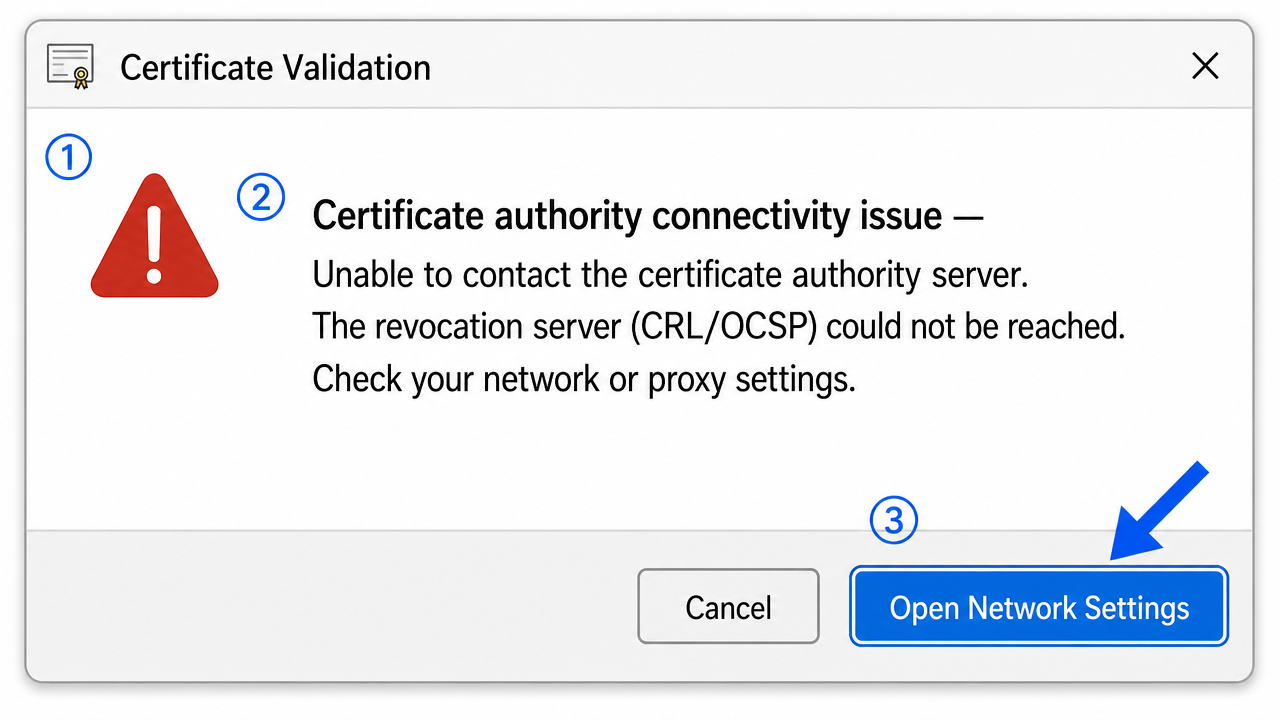
A certificate authority connectivity issue is a network problem, not a certificate one. Signing checks revocation by reaching the CA's CRL/OCSP endpoints — if a firewall, proxy or closed port 80 blocks that request, signing fails closed. Whitelist the exact endpoints from the certificate's Details tab.
A logistics company moved their accounts department to a new office over a weekend. Monday morning, not one DSC would sign. The tokens were detected, the certificates were valid, the clocks were right — and yet every signing attempt hung for thirty seconds and then failed with "unable to contact the certificate authority." Nothing about the certificates had changed. The network had.
A certificate authority connectivity issue is one of the most misdiagnosed problems in the whole digital signature world. The error points at your certificate. The real cause is almost always sitting between your machine and the CA's servers — a firewall, a proxy, a DNS entry, or a blocked port. Honestly, the software could just say "I couldn't reach the revocation server," but instead it throws a vague certificate error and sends people down the wrong path for hours.
Why signing needs network access at all
Here's the part most people don't realise: applying a signature isn't a purely local act. Before your software trusts a certificate, it often tries to check whether that certificate has been revoked. It does this by reaching out to the CA — downloading a CRL (Certificate Revocation List) or querying an OCSP responder in real time.
If that outbound request can't complete, a well-behaved application "fails closed" and refuses the signature. So a machine with a flawless certificate and a broken path to the CA behaves exactly like a machine with a bad certificate. That single design decision is behind a huge share of the connectivity errors I see.
Basic checks before you go deeper
Rule out the simple network causes first — they're far more common than anything exotic.
-
Test plain internet access. Open the CA's public website in a browser. If it won't load, this is a general connectivity problem, not a certificate one, and you should fix the network first.
-
Check the system proxy. Many offices route traffic through a proxy that browsers respect but signing middleware doesn't. Open "Internet Options → Connections → LAN settings" and note the proxy; the signing app may need it configured separately.
-
Confirm date and time. A wrong clock can make a freshly downloaded CRL look expired, which the software then rejects as if the server were unreachable. Sync the time before assuming it's the network.
-
Try from a different network. Tether the machine to a mobile hotspot and retry. If it signs instantly on mobile data but fails on office Wi-Fi, you've just proven the problem is the corporate network, not the certificate.
Step-by-step fix
Once you've confirmed it's connectivity, work through the path to the CA.
-
Find the CRL and OCSP URLs. Open your certificate's Details tab and read the "CRL Distribution Points" and "Authority Information Access" fields. These are the exact addresses your machine must reach. Copy them down.
-
Test each URL directly. Paste the CRL URL into a browser. A working endpoint prompts a file download; a blocked one times out or returns an error. This tells you precisely what the firewall is eating.
-
Whitelist the CA endpoints. Give those CRL/OCSP hostnames to whoever manages the firewall or proxy and ask for outbound HTTP/HTTPS access. This is the actual fix on most corporate networks — and the step people skip because it needs IT involvement.
-
Check ports 80 and 443. CRL and OCSP traffic usually rides on plain HTTP (port 80), which security teams love to block. If 443 is open but 80 is closed, revocation checks quietly fail. Confirm both.
-
Flush DNS and the URL cache. Run
ipconfig /flushdnsandcertutil -urlcache * deletein an elevated prompt. Stale DNS or a cached failed lookup will keep failing long after the network is fixed. -
Configure the proxy inside the signing app. If your environment forces a proxy, set it explicitly in the middleware or Adobe's network preferences. Relying on the system proxy alone often isn't enough.
-
As a controlled fallback, adjust revocation checking. Where your compliance policy allows it, you can set the app to not fail hard when the revocation server is unreachable. Treat this as a temporary measure, not a fix — you're trading a strict check for the ability to sign.
-
Re-test and confirm timing. A successful signature should be near-instant. If it still pauses for many seconds before working, a secondary endpoint is still being blocked and timing out.
An edge case worth knowing
The tricky version of this problem is intermittent. Consider a case where signing worked most mornings but failed most afternoons, seemingly at random. The certificates were fine and the firewall rules hadn't changed. The actual cause was a load-balanced proxy: one node in the cluster had the CA endpoints whitelisted and another didn't, so whichever node a request happened to hit decided whether signing succeeded. It looked like a certificate glitch and was really a network inconsistency.
On some setups the behaviour also depends on the browser or the OS. A macOS machine using its own network stack may reach the CA while a Windows box behind the same proxy fails, because the two resolve proxy settings differently. If two machines on the same network disagree, compare their proxy and DNS configuration before touching anything certificate-related.
Environment quirks that change the outcome
Connectivity failures are rarely uniform across a network, which is exactly why they're so easy to misread as certificate faults. A machine on a guest VLAN might reach the CA freely while a machine on the secured corporate VLAN can't, because the two segments have different outbound rules — identical certificates, opposite results.
VPNs deserve special suspicion. A split-tunnel VPN can route CA traffic one way when connected and another way when off, so signing works at the desk and fails from home, or vice versa. Cloud-hosted virtual desktops add another layer: their outbound path often runs through a tightly controlled gateway that blocks the plain HTTP the CRL needs. If you're troubleshooting a remote or virtual environment, assume the network path is different from a normal office PC and test the CA endpoints from inside that exact environment rather than from your own machine.
If none of this works
Connectivity errors almost always trace back to a blocked CRL/OCSP endpoint, a proxy the signing app doesn't know about, or a closed port 80 — and testing the CA URLs directly in a browser is the fastest way to prove it. Get IT to whitelist the endpoints and most of these cases resolve cleanly.
A few are harder: split-tunnel VPNs, deep-packet-inspection proxies that re-sign traffic, or CAs that moved their endpoints without updating older certificates. If you've verified the URLs and the network still refuses to cooperate, that's the kind of diagnosis we do professionally on a remote session — reading the certificate's real endpoints and tracing exactly where the request dies. No inflated promises; some corporate networks need a careful hand. But begin with the URLs in the Details tab. They tell you where to look.
Frequently asked questions
Why does signing need to contact the certificate authority?
Before trusting a certificate, signing software often checks whether it has been revoked by downloading a CRL or querying an OCSP responder. If that outbound request can't complete, a strict application refuses the signature, so a network block looks exactly like a bad certificate.
How do I find which CA URLs my machine needs to reach?
Open your certificate's Details tab and read the CRL Distribution Points and Authority Information Access fields. Those are the exact addresses to test in a browser and whitelist on the firewall.
Why does signing work on mobile data but fail on office Wi-Fi?
The office network is blocking the CA's CRL/OCSP endpoints, usually via a firewall or proxy. Mobile data has open outbound access, so the revocation check completes. Ask IT to whitelist the CA endpoints on the corporate network.
Is it safe to disable revocation checking?
Only as a temporary, policy-permitted measure. It lets you sign when the CA is unreachable, but you lose the assurance that the certificate hasn't been revoked. The real fix is to unblock the endpoints.
Need hands-on help?
Get expert, independent help with PKI, certificates and digital signatures over a screen-shared remote session.
Comments
Loading comments…