
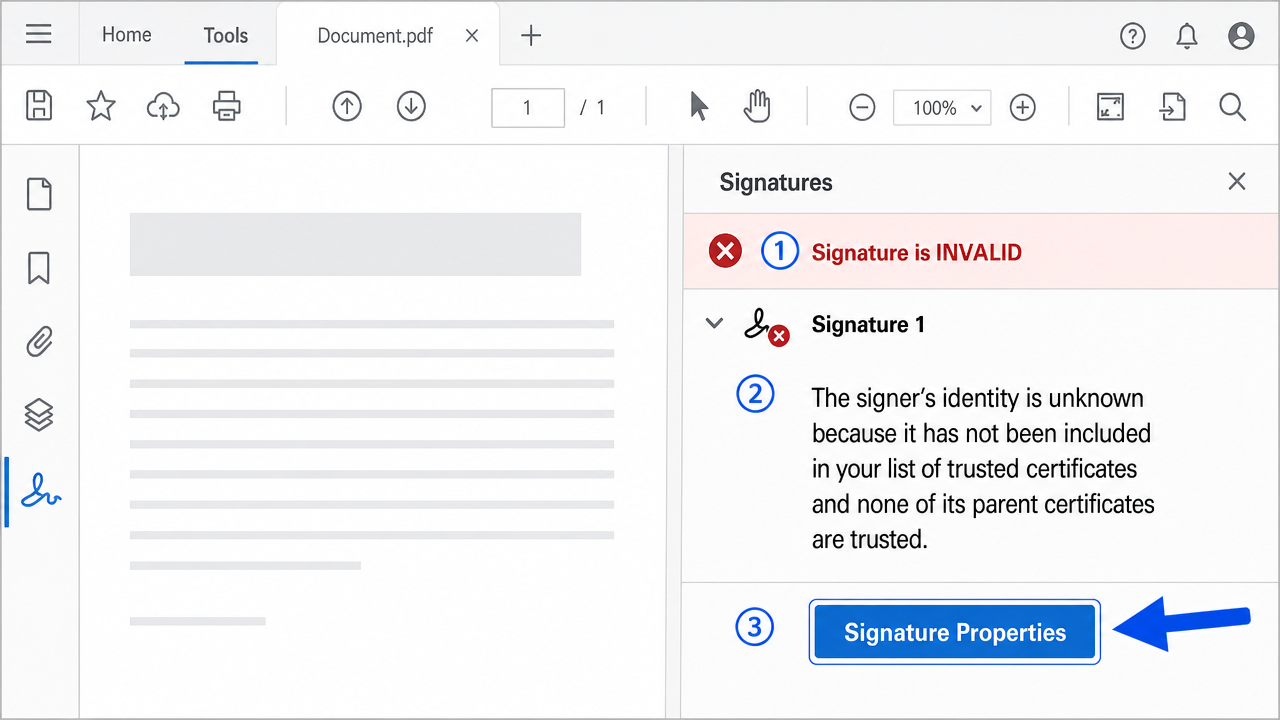
'Signature is invalid' in Adobe Acrobat almost always means Acrobat doesn't trust the certificate's issuer yet, not that the document was tampered with. Read the exact reason in the Signature Panel, then add the CA chain to Adobe's Trusted Identities and enable AATL.
A law firm's clerk opened a signed contract in Adobe Acrobat and saw the one thing nobody wants before a filing: a yellow bar, then a red one, reading "At least one signature is invalid." The document hadn't been touched since signing. The signer swore the certificate was fine. Both were right — and the answer sat in Adobe's own trust settings, not in the certificate at all.
"Signature is invalid" in Acrobat is one of the most alarming and most misunderstood messages in digital signing. It sounds like tampering or a dead certificate. Most of the time it means something far more boring: Adobe simply doesn't trust the certificate's issuer yet. The wording is genuinely unfair here — "invalid" implies something is broken, when usually nothing is broken at all.
Why Acrobat says "invalid"
Acrobat validates a signature on two separate axes. First, document integrity: has anything changed since signing? Second, identity trust: does Acrobat trust the certificate that signed it? A signature is only shown as valid when both pass.
Here's the catch most people miss: Adobe keeps its own trust store. It doesn't fully rely on Windows. So a certificate that Windows trusts perfectly can still show as invalid in Acrobat because the issuing CA isn't in Adobe's Trusted Identities or its AATL list. That single design choice is behind the majority of "invalid signature" reports I see, and it's why the same PDF can look valid on one machine and invalid on another.
Basic checks before you go deeper
Separate "changed document" from "untrusted signer" before doing anything else.
-
Read the exact reason. Open the Signature Panel and expand the signature. Acrobat will say either the document was modified or the signer's identity is unknown/not trusted. Those are completely different problems — don't fix one thinking it's the other.
-
Confirm it's a trust issue, not tampering. If the message is "the signer's identity is unknown because it has not been included in your list of trusted certificates," the document is intact. This is a trust problem, and it's fixable on your side.
-
Check whether AATL trust is enabled. Go to Preferences → Signatures → Verification and confirm "Load trusted certificates from an Adobe AATL" is ticked. If it's off, valid AATL signatures show as untrusted.
-
Verify your clock. Acrobat validates against the signing time and the current time. A wrong system clock can make a valid signature look invalid, especially without a trusted timestamp.
Step-by-step fix
If it's a trust issue, add the signer's chain to Adobe deliberately.
-
Open Signature Properties. In the Signature Panel, select the signature and click "Signature Properties." This is your window into exactly why Acrobat is unhappy.
-
Show the signer's certificate. Click "Show Signer's Certificate." You'll see the certificate and its chain. Note whether the intermediate and root are present.
-
Add it to Trusted Certificates. On the Trust tab, choose "Add to Trusted Certificates," then enable "Use this certificate as a trusted root" and "Certified documents / signing." This tells Acrobat to trust this issuer going forward.
-
Install the full CA chain. Rather than trusting one certificate, import the CA's root and intermediate so every certificate from that CA validates. This is the difference between a one-off patch and an actual fix.
-
Enable AATL and Indian CA trust. For Indian DSCs, make sure the CCA India root or the relevant AATL entry is loaded. Many DSCs chain up to roots Adobe doesn't ship by default.
-
Turn on revocation checking sensibly. In Verification preferences, allow checking for revocation — but only if your network can reach the CA. On blocked networks this setting can turn a valid signature into an "unknown" one.
-
Re-validate the signature. Right-click the signature and choose "Validate Signature," or reopen the document. It should now read "Signature is valid." If it doesn't, the chain is still incomplete.
-
Set validation to use secure time. Prefer the embedded timestamp over the local clock where available, so a drifting system time can't invalidate an otherwise good signature.
The edge case that catches people
Here's one that looked like tampering and wasn't. A signed agreement showed "invalid" for one recipient and "valid" for everyone else. Same file, same Acrobat version. We spent a while suspecting a corrupted download. The real cause: the one recipient had, months earlier, manually added an older version of the CA's certificate to their Trusted Identities, and that stale entry conflicted with the current chain. Acrobat preferred the local, outdated certificate and failed validation. Removing the old manual entry and letting AATL supply the current one fixed it instantly.
Then there's the cross-platform twist. Preview on macOS and Acrobat on Windows don't share a trust store, so a signature can read valid in one and invalid in the other on the same document. If two people disagree about a signature's validity, compare which viewer and which trust list each is using before assuming the file is damaged.
Environment quirks that change the outcome
Acrobat's insistence on its own trust store means the same signed PDF genuinely can be valid for one person and invalid for another, and neither is wrong. Whoever has the CA chain and AATL loaded sees a green tick; whoever doesn't sees red. This is normal, not corruption, and explaining it saves a lot of unnecessary alarm before a filing.
Acrobat version and reader choice matter as well. An older Reader with a stale AATL list will reject a certificate a current version accepts, and lightweight PDF viewers often skip trust validation entirely, showing "valid" where Acrobat shows "invalid." Timestamp trust is a quieter trap — if the document's timestamp authority isn't trusted, Acrobat can flag the signature even when the signer's certificate is fine. When validity depends on who's looking, compare viewers and trust lists before you ever suspect the document itself.
If none of this works
Nearly every "signature is invalid" case in Acrobat is a trust problem, not a broken certificate — adding the CA chain to Adobe's Trusted Identities and enabling AATL resolves the vast majority. Always read the exact reason first so you don't fix trust when the real message was "document modified."
A few cases are harder: genuinely altered documents, stale manually-added certificates fighting the current chain, or timestamp authorities Acrobat won't trust. If you've added the chain and it still shows invalid, that's the kind of thing we sort out professionally on a remote session — reading Signature Properties line by line. No inflated claims here; some documents genuinely need a closer look. But start in the Signature Panel and read why it's invalid. That one sentence tells you almost everything.
Frequently asked questions
Does 'signature is invalid' in Acrobat mean the document was tampered with?
Usually not. Expand the signature in the Signature Panel — if it says the signer's identity is unknown or not trusted, the document is intact and Acrobat simply doesn't trust the issuer yet. Only a 'document has been modified' message indicates a change.
Why does Acrobat show invalid when Windows trusts the certificate?
Adobe keeps its own trust store separate from Windows. A certificate Windows trusts can still show invalid in Acrobat until you add the CA to Adobe's Trusted Identities or enable AATL.
How do I fix an untrusted signature for Indian DSCs?
Open Signature Properties, show the signer's certificate, add the CA root and intermediate to Trusted Certificates, and enable AATL plus the CCA India root in Verification preferences. Then re-validate the signature.
Why is the same PDF valid for one person and invalid for another?
Because Acrobat validation depends on each viewer's own trust list. Whoever has the CA chain and AATL loaded sees it as valid; whoever doesn't sees it as invalid. It's not corruption.
Need hands-on help?
Get expert, independent help with PKI, certificates and digital signatures over a screen-shared remote session.
Comments
Loading comments…